How to Print Your Card at Home, at a Print Shop, or as a Photo
Pick the way that suits your printer and your plans, and turn your digital card into one you can hand over.
Published
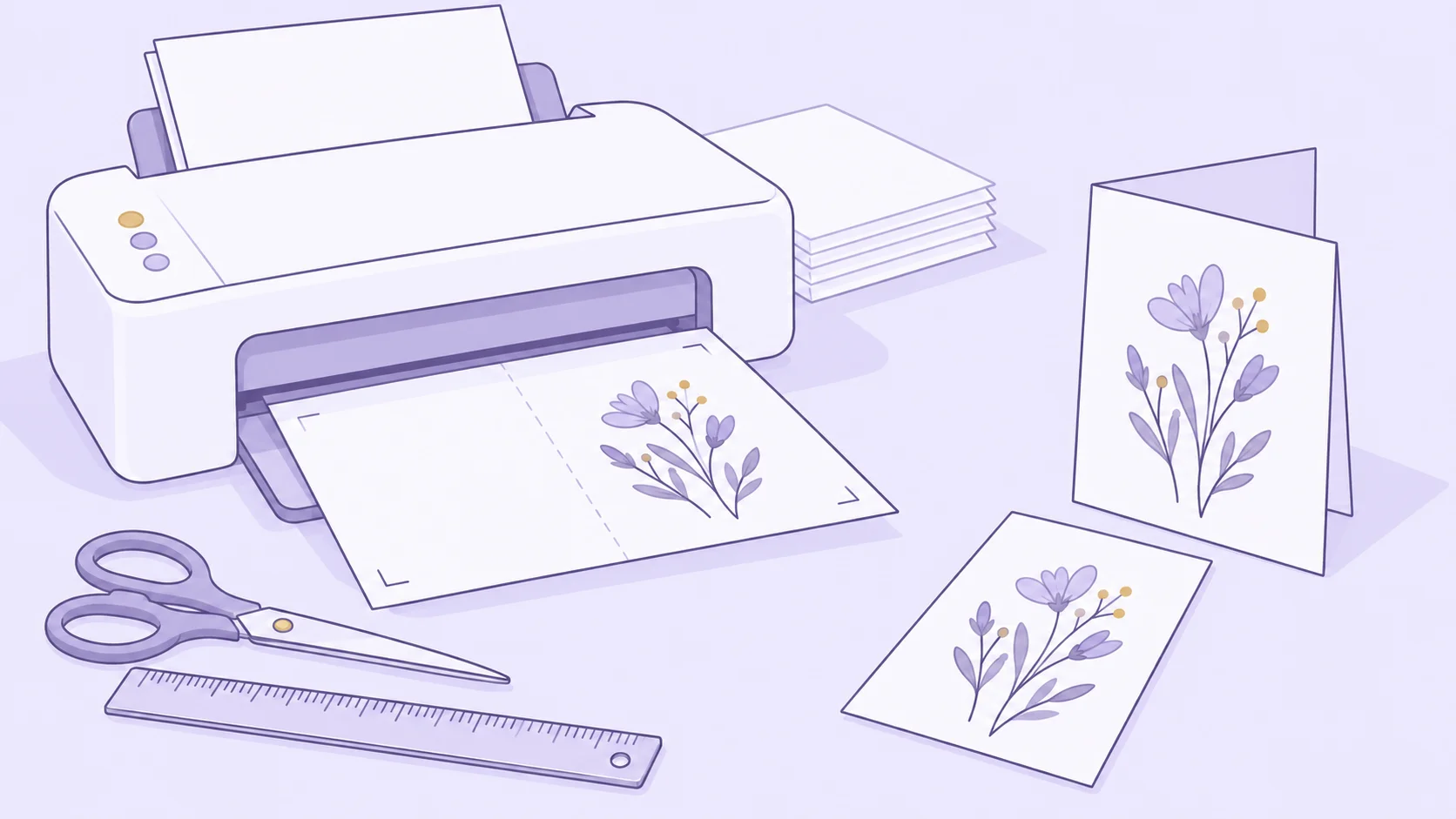
A digital card can reach someone across the country in the time it takes to send a message. Sometimes, though, you want something to hand over in person: a card to set beside the birthday cake or to tuck into a gift bag. Printing turns the same finished cover, and the note you wrote inside, into a card they can hold, stand on a shelf, and keep. The best way to print it depends on the printer you have, the paper you would like, and how soon you need it.
Choose how you will print your card
Open your card from the private link in your delivery email, or from the page shown after payment. Below the buttons for saving and sharing, select Print this card. You will see three choices. Each one uses the same finished cover and comes with your card, so you can choose by how you would like to make it.
At home gives you a folded 5 × 7 in card from your own printer. It suits you if you have a color printer and want the card today. You print one sheet, trim it along the marks, and fold it. A personal note, if you added one, prints inside.
At a print shop uses the same file. A copy and print shop can print it on heavier cardstock, trim it by machine, and fold it, so the edges come out as clean as a card from a store. This is the better route if your printer can’t handle cardstock, or if you need several copies.
As a photo print gives you the cover as a 5 × 7 in photo from a photo counter or an online photo service. The card is flat, so there is no inside. You can order your note as a second photo to tuck in with it. Choose this for a glossy finish, a card to frame, or the quickest errand.
The folded card comes as a PDF for US Letter or A4 paper. The page suggests the size used where you are, and you can switch it if your printer uses the other one. Both sizes make exactly the same 5 × 7 in card. Download the files you want while your card link is active; the copies saved on your device keep working after the link expires.
Print a folded card at home
Home printing uses one sheet of paper per card, and most of the time goes into trimming. Print a test on plain paper first. It shows how your printer handles the size and, for a card with a note, the double-sided printing, before you use your good paper.
What you need
You need a color printer, paper in the size you downloaded, and a way to cut straight lines. A paper trimmer gives the cleanest edges. A craft knife with a metal ruler on a cutting mat works well too, and scissors are fine if you cut slowly along a ruled pencil line. For a crisp fold in cardstock, you will also want a ruler and something blunt to press a crease, such as a bone folder or the back of a butter knife.
Choose these print settings
Open the downloaded PDF and print from it, not from the web page. In the print dialog, check these settings:
- Paper size: the size you downloaded, US Letter or A4.
- Scale: Actual size or 100%. Fit to page would shrink the card.
- Orientation: landscape. Most printers set this from the file.
- Pages per sheet: one. The card is already laid out, so skip booklet and multiple-page options.
- Paper type and quality: the paper you loaded, with a high-quality color setting.
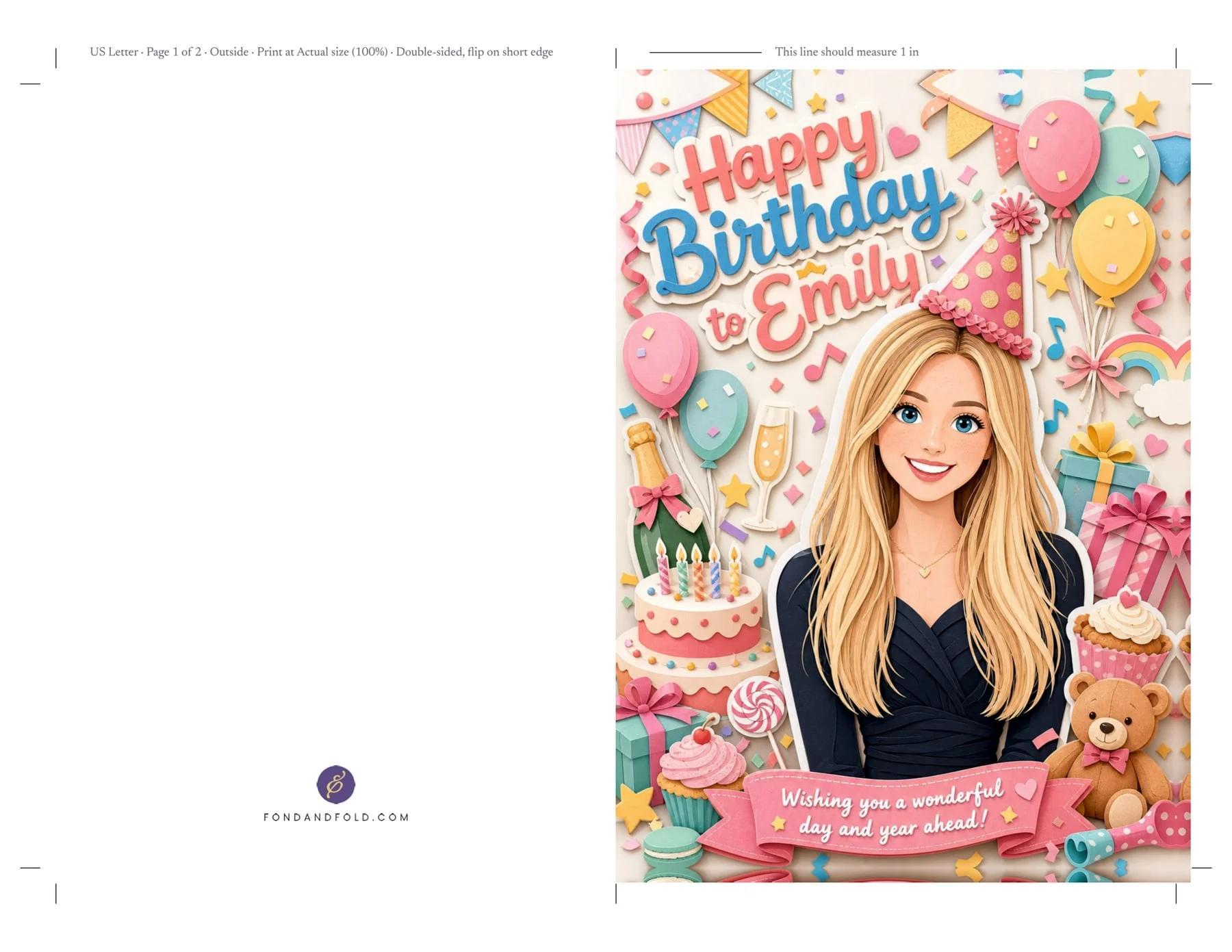
The top margin of the first page has a short line labeled to measure 1 inch. Check it with a ruler after printing. If it comes out shorter, the printer scaled the page and the card will be smaller than 5 × 7 in.
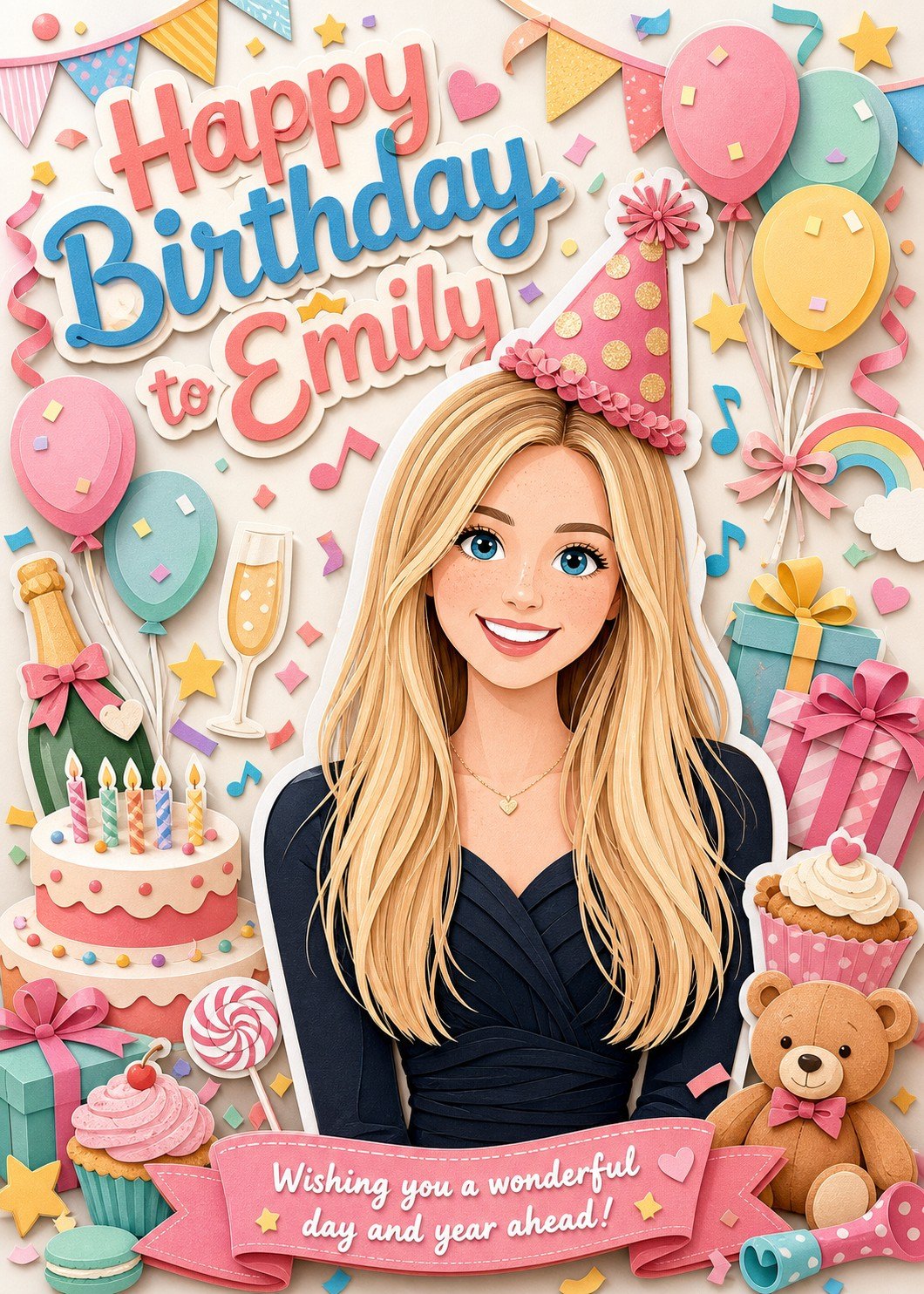
Print your note on the inside
If you added a personal note, the PDF has two pages: the outside, then the inside with your note. They print on the two sides of one sheet. Choose double-sided printing and flip on the short edge. Printers word this setting differently, so look for “short edge” in the double-sided options.
If your printer can’t print both sides on its own, print page 1, put the same sheet back in the tray, and print page 2. Which way the sheet should face depends on the printer. Before you feed it back in, draw a small pencil arrow at the top of the first side; the plain-paper test will then show you the right way to load it.
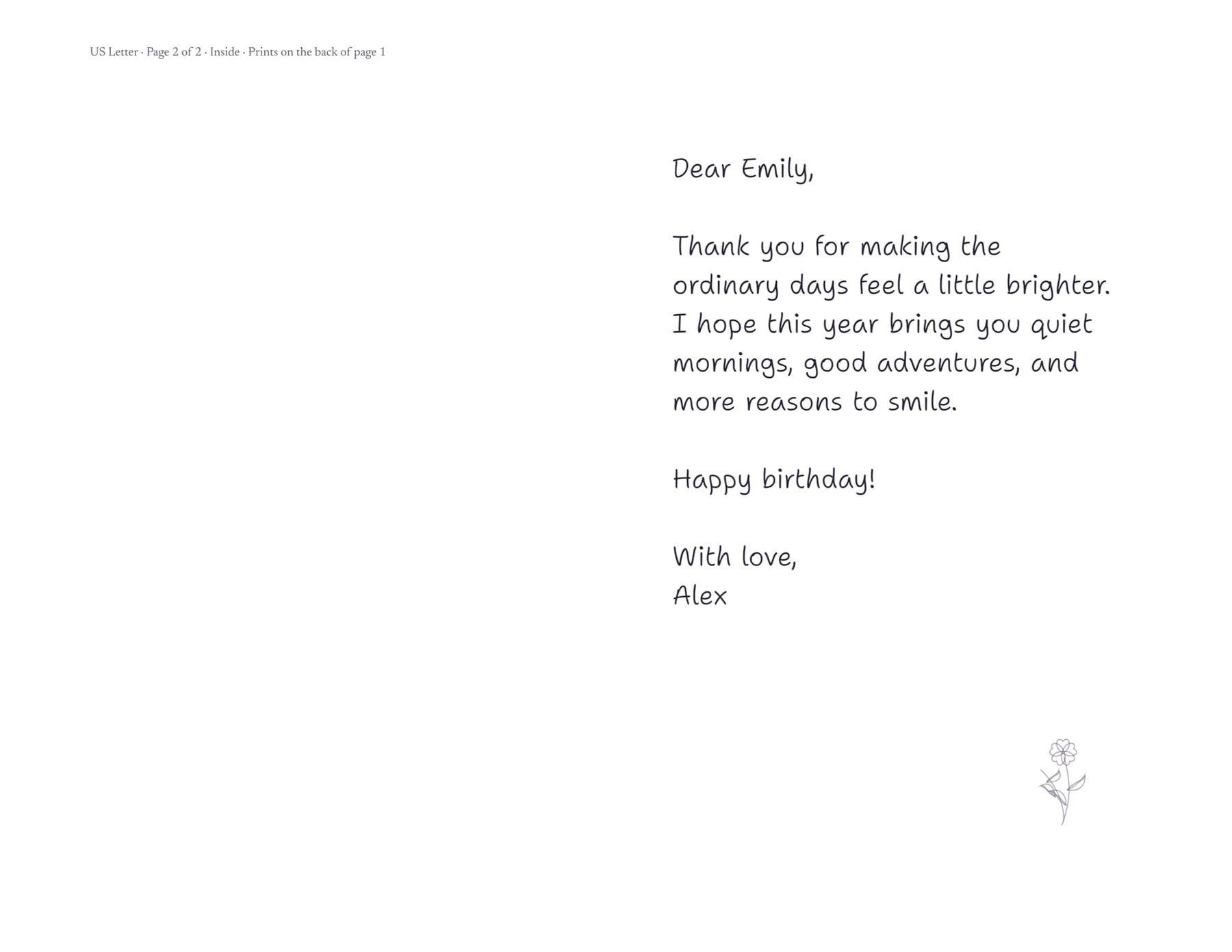
Without a note, the PDF has a single page. Print it on one side, and the inside of the card stays blank for your own handwriting.
Score, trim, and fold
Work in this order, because the fold marks sit in the margin you are about to cut away:
- Score the fold. Lay a ruler between the two short fold marks at the top and bottom of the outside page, and draw the blunt tool along it with firm pressure. On plain paper, you can skip this step.
- Trim along the crop marks. The short lines at each corner show where the card’s edges run. Line up your trimmer or ruler with the marks on opposite sides and cut straight through, on all four sides.
- Fold along the scored line with the cover facing out, then press the fold flat with the side of the tool.
The artwork continues a little past the crop marks, so a cut that drifts slightly outside a line still shows the picture at the edge. The finished card is 5 × 7 in and fits a standard A7 envelope, which measures 5 ¼ × 7 ¼ in.
Why the card needs trimming
Most home printers can’t print right to the edge of a sheet, so they leave a narrow white border on every side. A US Letter or A4 sheet is also larger than an unfolded 5 × 7 in card. Some printers offer a borderless setting, but it works by enlarging the page slightly and printing past the paper’s edge, which cuts off a little of the design. Trimming at the crop marks keeps the whole cover and gives the card the clean, full-color edge of a card from a store.
Have a print shop make it
A print shop is a good choice when you want heavier cardstock than your printer can take, several copies, or edges trimmed by machine. Use the same PDF you would print at home. US Letter is the usual size in the United States and Canada, and A4 in most other countries.
Bring the file on your phone or a USB drive, or send it the way the shop prefers. Then ask for:
- printing at actual size, with no scaling
- cardstock in the weight and finish you like
- double-sided printing, if your card has a note inside
- trimming at the crop marks
- scoring and folding along the center
The artwork runs ⅛ inch past the trim line on the top, bottom, and outer edge. Shops call this bleed, and it lets them cut right to the edge without leaving white. Prices, cardstock choices, and turnaround vary from shop to shop, so ask before you order. If you want several copies, check the first one before they print the rest.
Print it as a flat photo
Photo counters and online photo services print pictures rather than folded cards. They can still turn your cover into a sturdy 5 × 7 in photo that stands on a shelf, fits a frame, or slips into an envelope.
Choose As a photo print and download the cover. If you added a note, download it too; it prints as its own 5 × 7 in photo that you can tuck in behind the cover. Upload the files, choose a 5 × 7 in print, and pick glossy or matte. The cover already has 5 × 7 proportions, so it shouldn’t need cropping. Some services still crop to fill, so check the preview before you order.
You can print the photo version at home too, on 5 × 7 in photo paper, if your printer supports that paper size and borderless printing. Borderless printing enlarges the image slightly, so look at the preview and make sure nothing close to the edge, such as the small signature along the bottom, is cut off.
Choose paper and get the colors right
Plain paper is best for your first test. For the card itself, most people use cardstock. Look up the heaviest paper your printer accepts, usually listed in its manual or specifications, and choose cardstock within that limit. Inkjet printers work best with matte cardstock made for inkjet; laser printers need paper labeled for laser printing. If you want a thick, stiff card, a print shop can use heavier cardstock than most home printers accept.
Some printers feed cardstock more reliably through a rear or manual slot, often one sheet at a time. When you print a note on the back, feed the sheet through the same slot for both sides.
Your card files use sRGB, the standard color space that home printers, print shops, and photo services expect, so there is nothing to convert before printing. Printed color still won’t look exactly like your screen. A screen gives off light while paper reflects it, and the printer, ink, and paper each change the result. Even two screens can show the same picture differently.
To get close, set the paper type to match what you loaded, use a high-quality color mode instead of draft, and print on white paper, since tinted paper shifts every color. For an important card, print one copy on the paper you plan to use and look at it in daylight before printing more.
If the PDF looks clearly different from your card when you view both on the same screen, or part of the design is missing, the file itself may have a problem. Write to hello@fondandfold.com with your order reference and we will look into it.
Fix common printing problems
Most printing problems come from one setting or the way a sheet went back into the printer. These are the ones you are most likely to meet:
- The card came out smaller than 5 × 7 in. The page was scaled to fit. Print again at Actual size (100%) and measure the 1 inch line.
- The note is upside down, or it ended up behind the cover. The sheet turned the wrong way between sides. With automatic double-sided printing, switch between short-edge and long-edge flip. When feeding by hand, turn the sheet around before printing page 2.
- A thin white line shows along one edge after trimming. The cut ran more than ⅛ inch outside the crop mark, or the page was scaled. Check the 1 inch line, then trim that edge again slightly further in.
- The printer won’t take the cardstock. Try a lighter weight, use the manual feed slot, or take the file to a print shop.
- On a phone, the PDF opens instead of downloading. Use the share button to save it to your files or choose Print to send it to a nearby printer. You can also open your card link on a computer.
- Your card link no longer opens. Links expire, but files you saved still work. If you didn’t save them, write to us with your order reference and we will check whether the files are still available.
A digital card reaches someone wherever they are. A printed one stays in the room with them, propped by the cake on the day and on a shelf long after. Choosing how to print it is mostly practical: go with the printer and paper you have, check the size and the two sides once on plain paper, and the card should come out the way you pictured it.
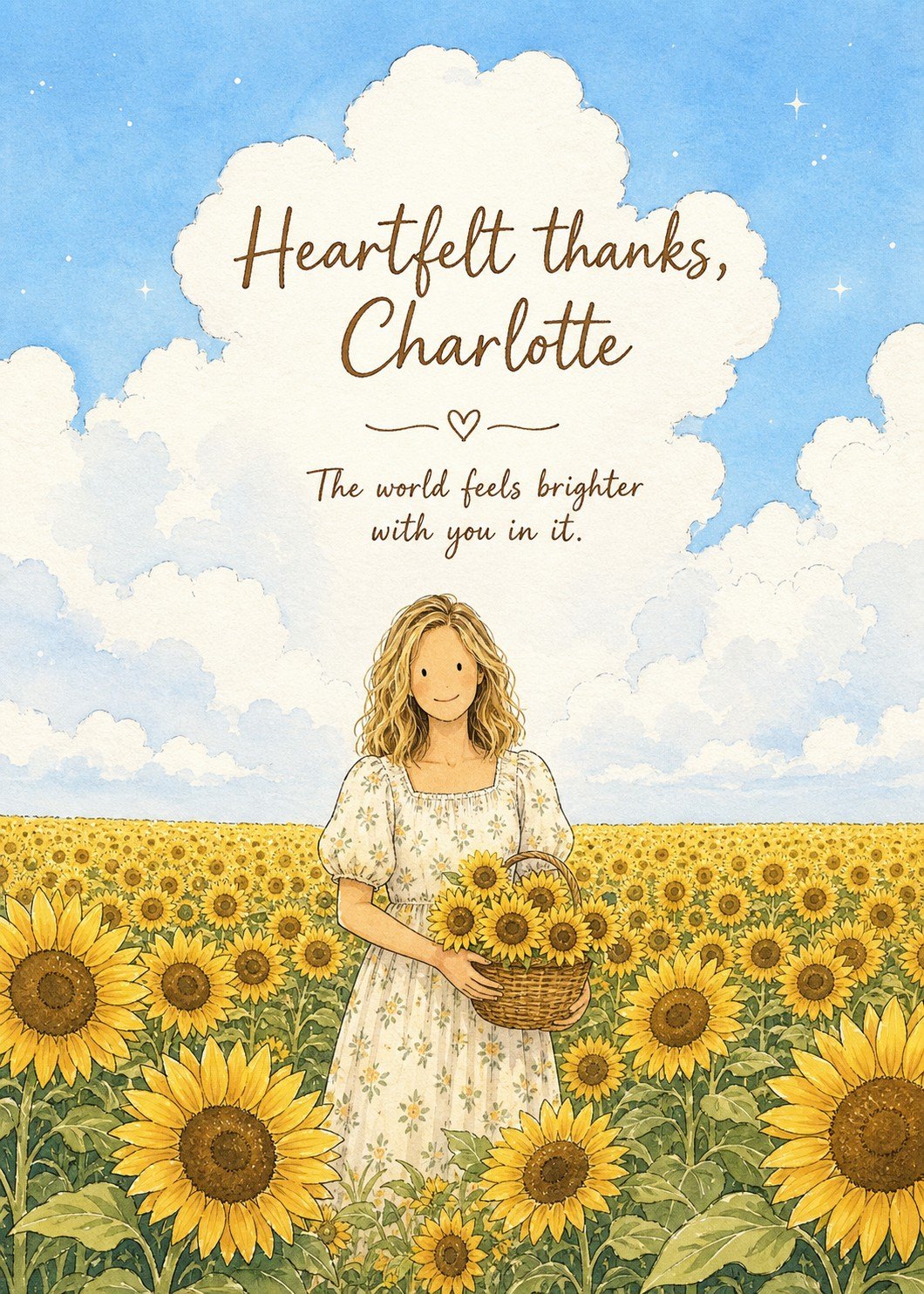
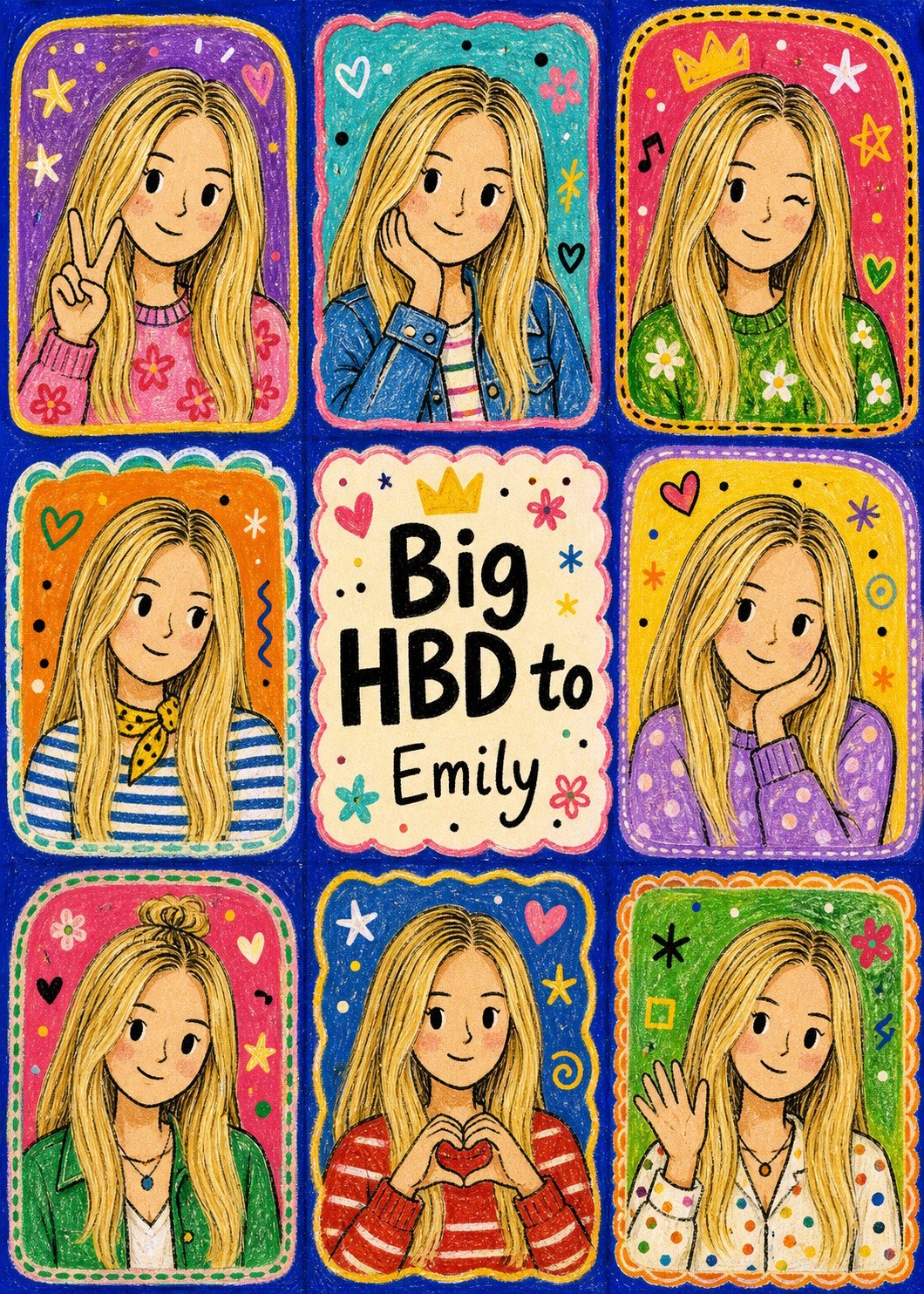
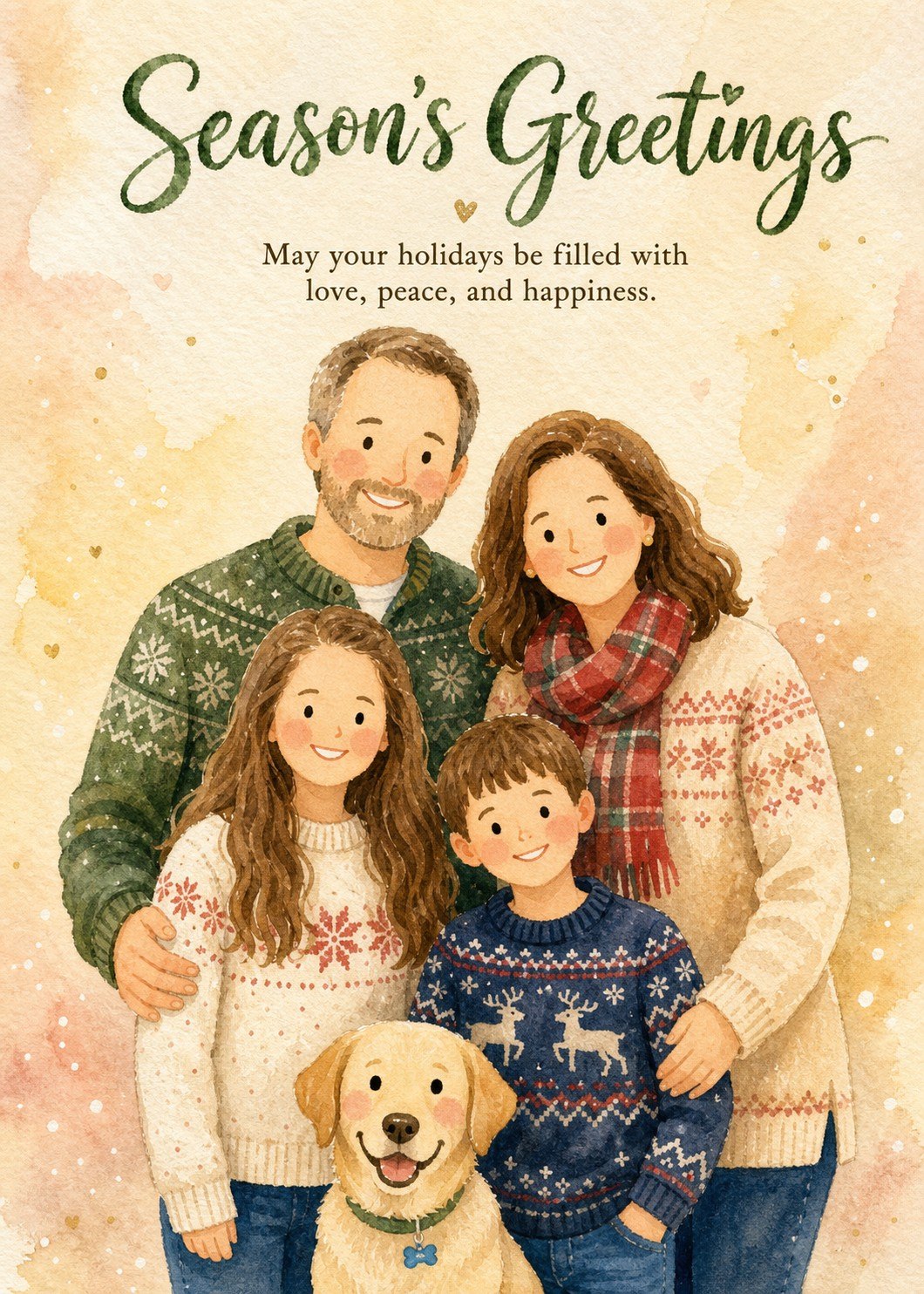
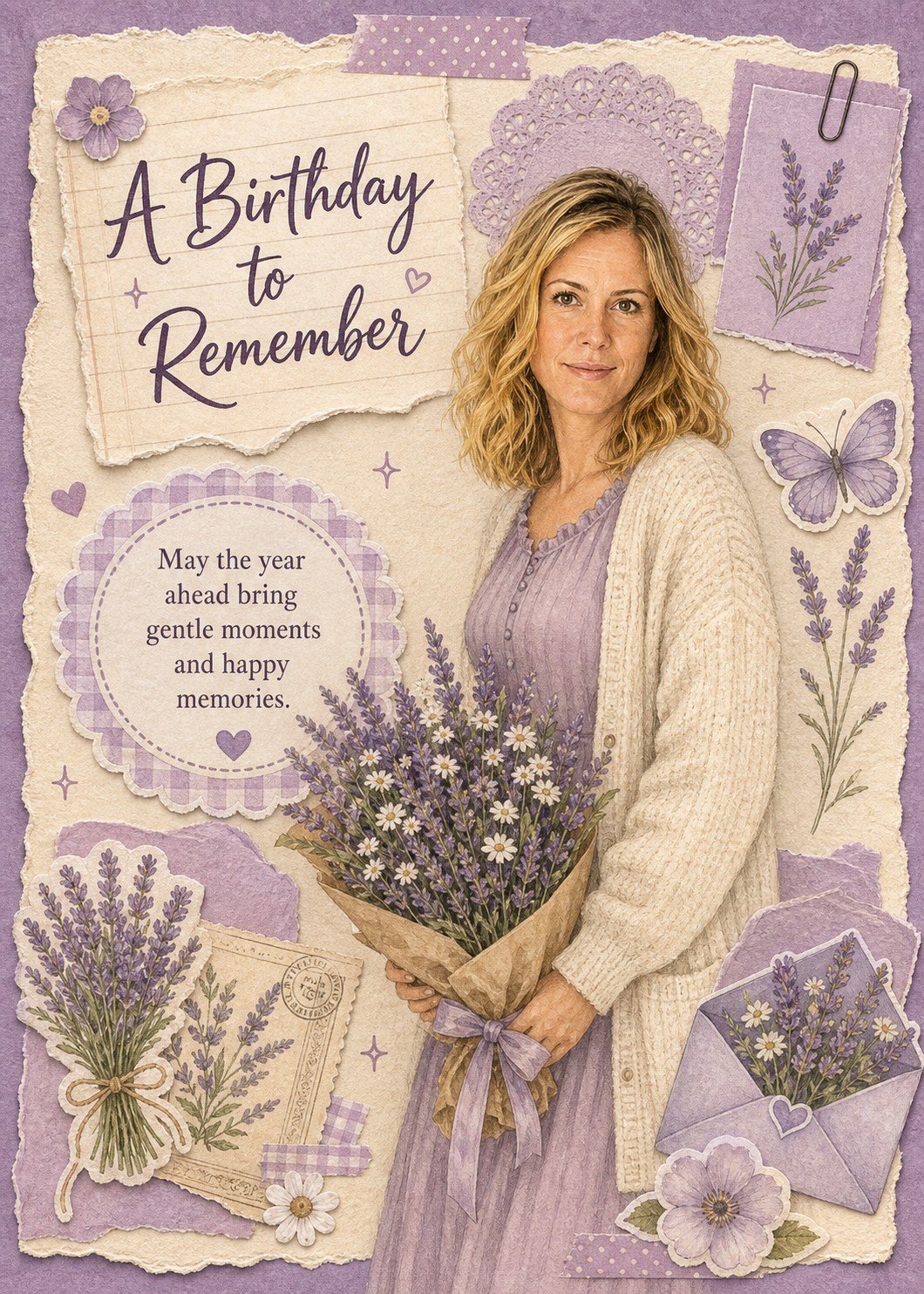
That is why every Fond & Fold card can go out as a link or be printed for the moment you hand it over. The design, the cover wording, and the layout are finished before you start, and the person you are celebrating is already part of the illustration, so printing never asks you to redesign anything. The same cover goes into every print version, and the note you wrote prints inside the folded card, in your own words.
We hope that when they pick it up, the card feels like it was made for them, because it was. Their likeness is on the front, your message is inside, and they can come back to both whenever they like.
Printed and folded, the card becomes something they can keep.